
Product Details
When you add or edit a product in your WebCommander admin, you'll find all of its settings organised into sections in the left-side panel. This reference guide explains every field and option available so you can create complete, accurate, and compelling product listings.
Product Information
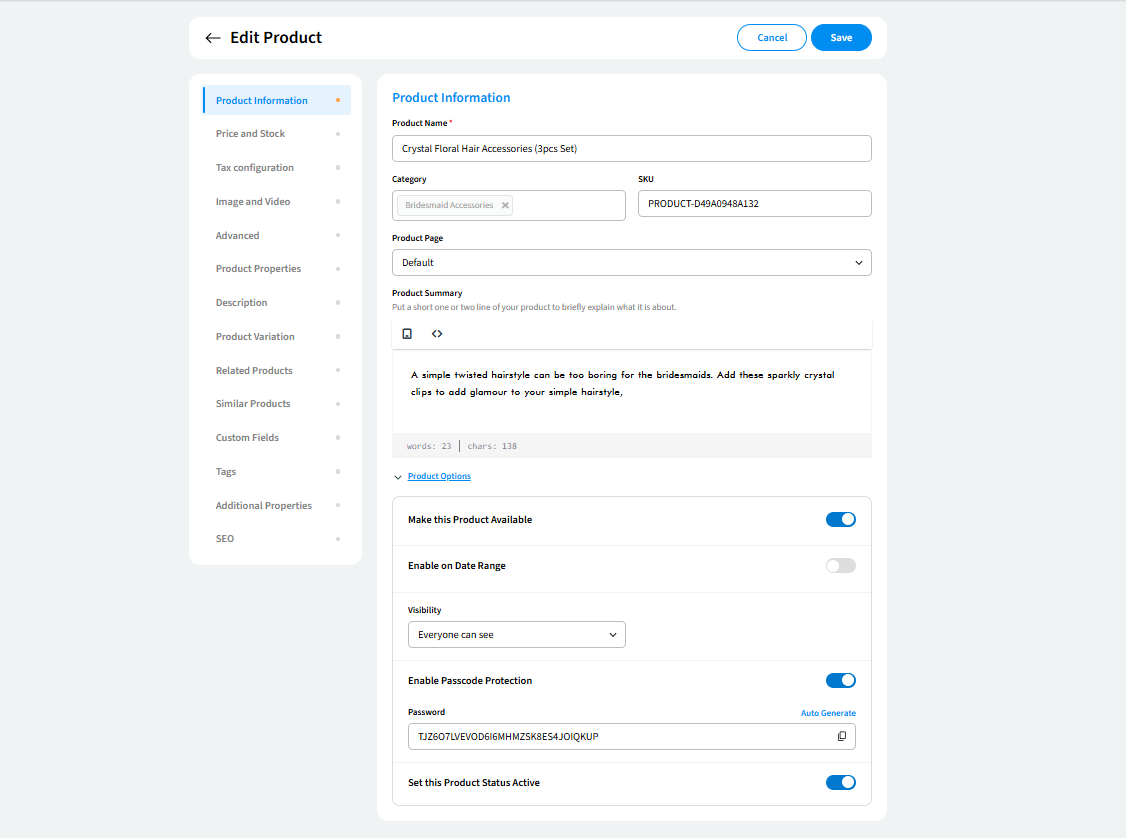
This section contains the core identity of your product — the details customers and search engines use to find and identify it.
- Product Name - The name of your product as it appears on your storefront. This field is required and you cannot save a product without it.
- Category - The category or categories your product belongs to. You can assign multiple categories to a single product. Categories help customers browse and filter your store.
- SKU - A unique identifier automatically generated by WebCommander for each product. You do not need to enter this manually.
- Product Page - The page layout template used to display this product on your storefront. Defaults to Default.
- Product Summary - A short one- or two-line description of your product, that give customers a quick snapshot of what the product is.
Product Options
Expand the Product Options section to access availability and visibility controls for this product.
- Make this Product Available - When enabled, the product is accessible on your storefront. Turning this off hides the product from customers without deleting it.
- Enable on Date Range - When enabled, you can set a Start Date and End Date to control the period during which the product is available. You can also toggle Available On Weekdays option.
- Visibility - Controls who can see this product on your storefront. Options are Everyone can see, Customer, or Only selected customers.
- Enable Passcode Protection - When enabled, customers must enter a passcode to view the product page.
- Set this Product Status Active - Sets the product's status to Active, making it live on your storefront.
Price and Stock
This section controls your product's pricing, stock tracking, and purchase rules.
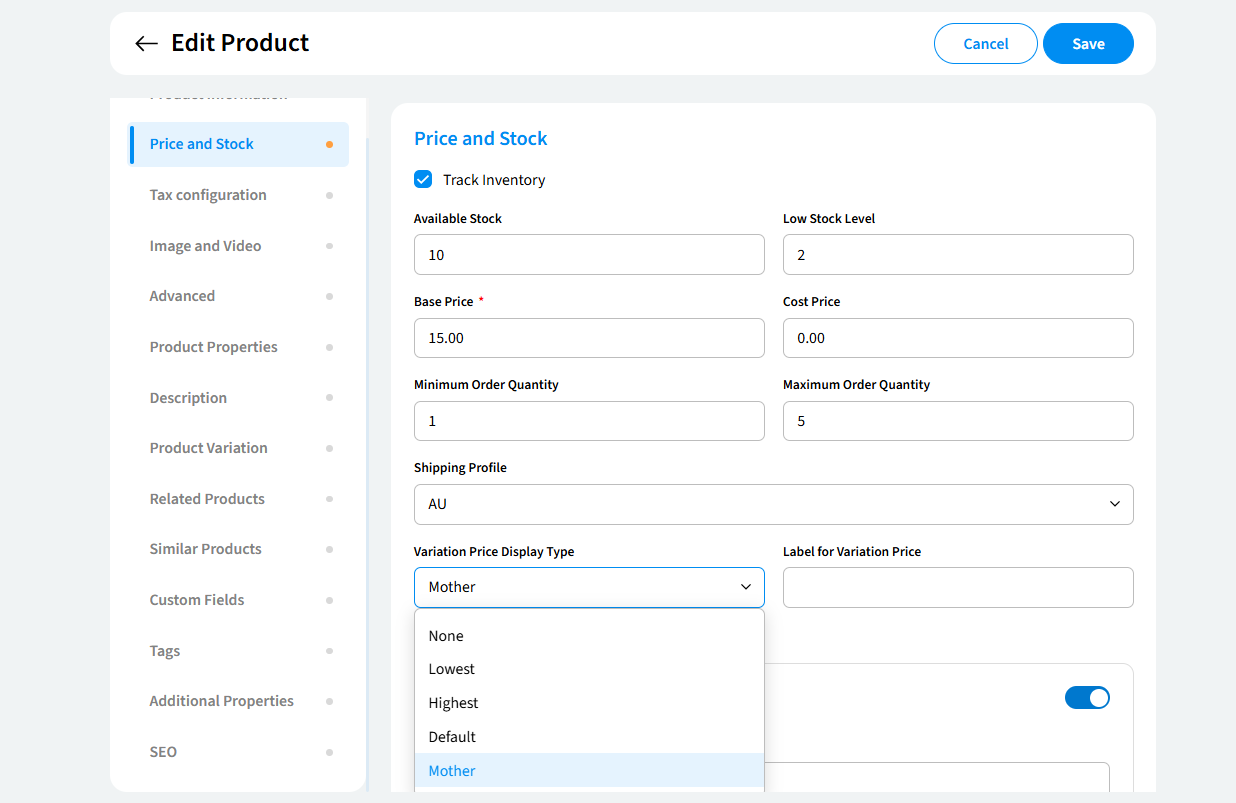
- Track Inventory - When enabled, two additional fields appear: Available Stock and Low Stock Level (the quantity threshold at which you want to be alerted).
- Base Price - The selling price of the product that customers see and pay on your storefront. This field is required.
- Cost Price - Your internal purchase or wholesale cost for the product. This is not visible to customers and is used for your own records and margin calculations.
- Minimum Order Quantity - The minimum number of units a customer must purchase in a single order. Defaults to 1.
- Maximum Order Quantity - The maximum number of units a customer can purchase in a single order. Leave blank for no limit.
- Shipping Profile - The shipping profile to apply to this product, which determines shipping rates and rules. Select from your pre-configured shipping profiles.
- Variation Price Display Type - Controls how the price is displayed on the storefront when a product has variations. Options are None, Lowest, Highest, Default, or Mother (displays the parent product's base price).
- Label for Variation Price - A custom text label displayed alongside the variation price on the storefront (for example, "Starting from").
Pricing & Stock Options
- Enable Multiple Order - Allows customers to place more than one order for this product.
- Promote this Product on Sale - Marks the product as on sale on your storefront, typically displaying a sale badge or label.
- Enable Expect to Pay - Displays an expected payment amount to customers, useful for products with variable or estimated pricing.
- Enable Call for Price - Replaces the product price on the storefront with a "Call for price" message, prompting customers to contact you directly for pricing.
- Make Product Price Restricted - Hides the product price from certain visitors. When enabled, a Restriction dropdown appears with three options: Restricted to everyone (no one sees the price), Restricted except customer (customers can see it), or Restricted except selected customer (only specific customers can see it).
- Restrict Product Purchase - Prevents customers from adding the product to their cart or completing a purchase.
- Hide Product Price from Store - Hides the price from the storefront entirely without restricting who can see the product.
Tax Configuration
- Overwrite default configuration - When enabled, this allows you to set a custom tax configuration for this specific product, overriding the default tax settings applied across your store.
Image and Video
This section is where you upload all media associated with your product. It contains three tabs:
- Image(s) - Upload one or more product images. You can drag and drop image files directly into the upload area, or click Upload from your computer to browse and select files.
- Video(s) - Upload or link product videos to give customers a richer view of the product.
- Specification file - Upload a file (such as a PDF) containing technical specifications or product documentation that customers can download from the product page.
Advanced
This section provides additional technical and search engine settings for your product.
Advance Information
- Global Trade Item Number (GTIN) - A standardised product identifier such as a barcode, UPC, EAN, or ISBN. Adding a GTIN can improve your product's visibility in search engines and shopping channels.
- Product Condition - The condition of the product. Options include New, and other condition states. This information can appear in search engine results.
Webtool
- Disable Tracking - When enabled, this product is excluded from the search engine optimisation and analytics tracking configured at the store level.
Meta Tag
- Name / Value - Custom meta tags you can add to this product page to help search engines categorise it. Click +Add more to add additional meta tag pairs
Product Properties
This section lets you classify your product and provide its physical dimensions
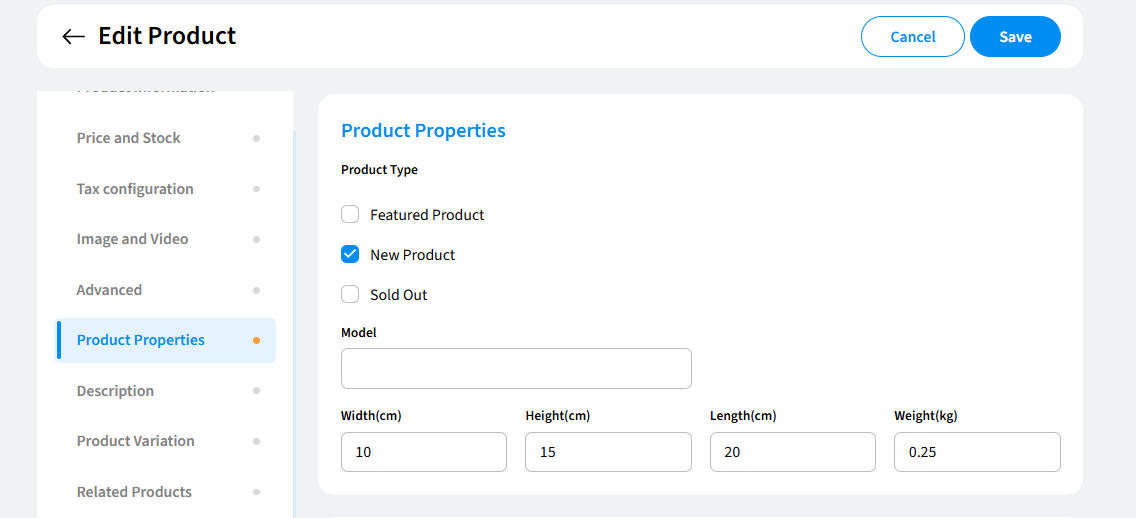
Product Type
Check one or more boxes to label this product's status on your storefront:
- Featured Product - Marks the product as featured, making it eligible to appear in featured product sections on your storefront.
- New Product - Marks the product as new, displaying a "New" label on the storefront.
- Sold Out - Marks the product as sold out on the storefront.
Physical Details
- Model - The model name or number of the product.
- Width (cm) - The width of the product in centimetres.
- Height (cm) - The height of the product in centimetres.
- Length (cm) - The length of the product in centimetres.
- Weight (kg) - The weight of the product in kilograms. This may be used to calculate shipping costs depending on your shipping profile settings.
Description
- Product Description - A full, detailed description of your product. The editor supports rich content — you can insert formatted text, links, tables, images, and videos. A word and character counter is displayed below the editor. This is separate from the Product Summary, which is a short intro. The Description is the complete, in-depth content shown on the product page.
Product Variation
Product variations let you offer different options of the same product — such as sizes or colours — each with their own availability, price, and stock.
Variation types (for example, "Pick Size") are created and managed in the Product Variation tab at the top of the Products section in your admin. Once a variation type exists, you can assign it to a product here.
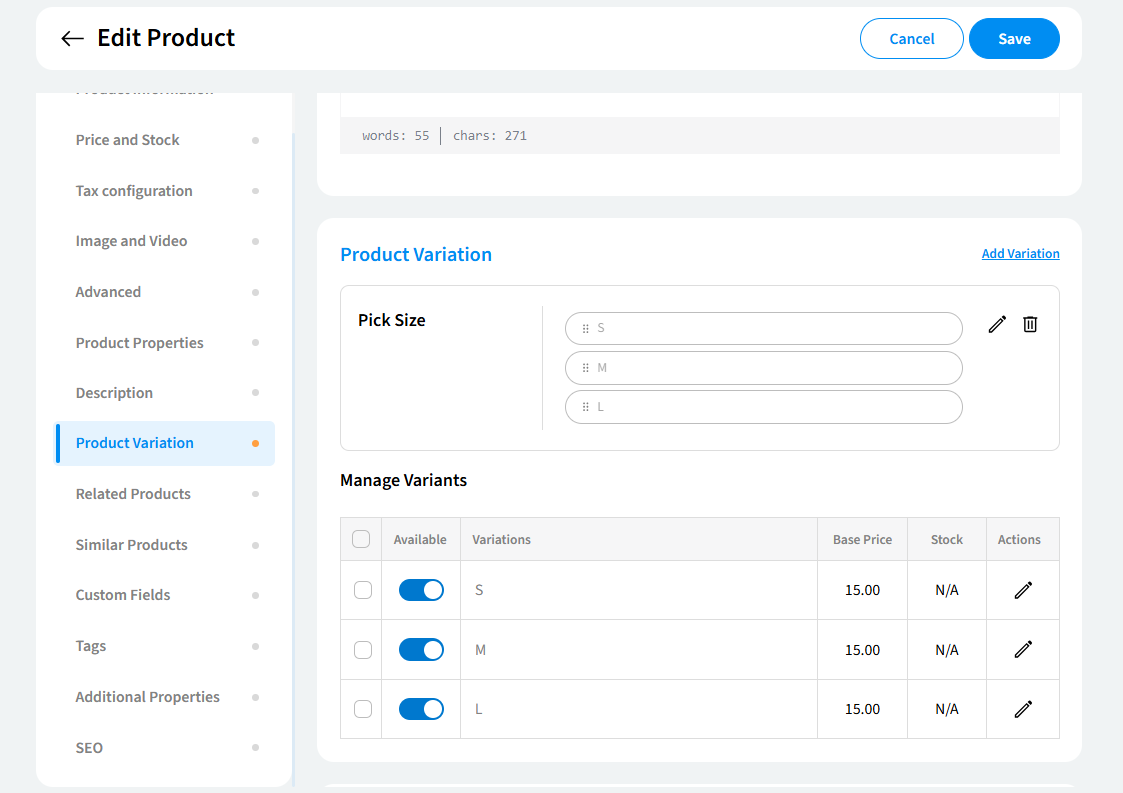
- Add Variation - Click to open the Edit Variation modal, where you select a variation type from the Variation dropdown (for example, Pick Size) and choose which options to apply to this product (for example, S, M, L).
Once a variation is added, a Manage Variants table appears showing each variant with the following columns:
- Available - A toggle to enable or disable each individual variant on the storefront.
- Variations - The variant option label (for example, S, M, or L).
- Base Price - The selling price for this specific variant.
- Stock - The stock level for this variant. Shows N/A if inventory tracking is not enabled.
- Actions - A pencil icon to edit the variant's details individually
Tip: You can edit the details of a variation type — including its name, individual option labels, values, and display order — by clicking the pencil icon next to the variation name in the variation card
Related Products
Related products are items you recommend alongside this product — typically complementary or frequently bought together products. Click Add Related Products to search for and select products from your catalog to display in a related products section on this product's page.
Similar Products
Similar products are alternative items you suggest to customers as comparable options to this product. Click Add Similar Products to search for and select products from your catalog.
Custom Fields
Custom fields let you collect additional information from customers on the product page — for example, a text input asking what they want printed, or a dropdown asking for a customisation option.
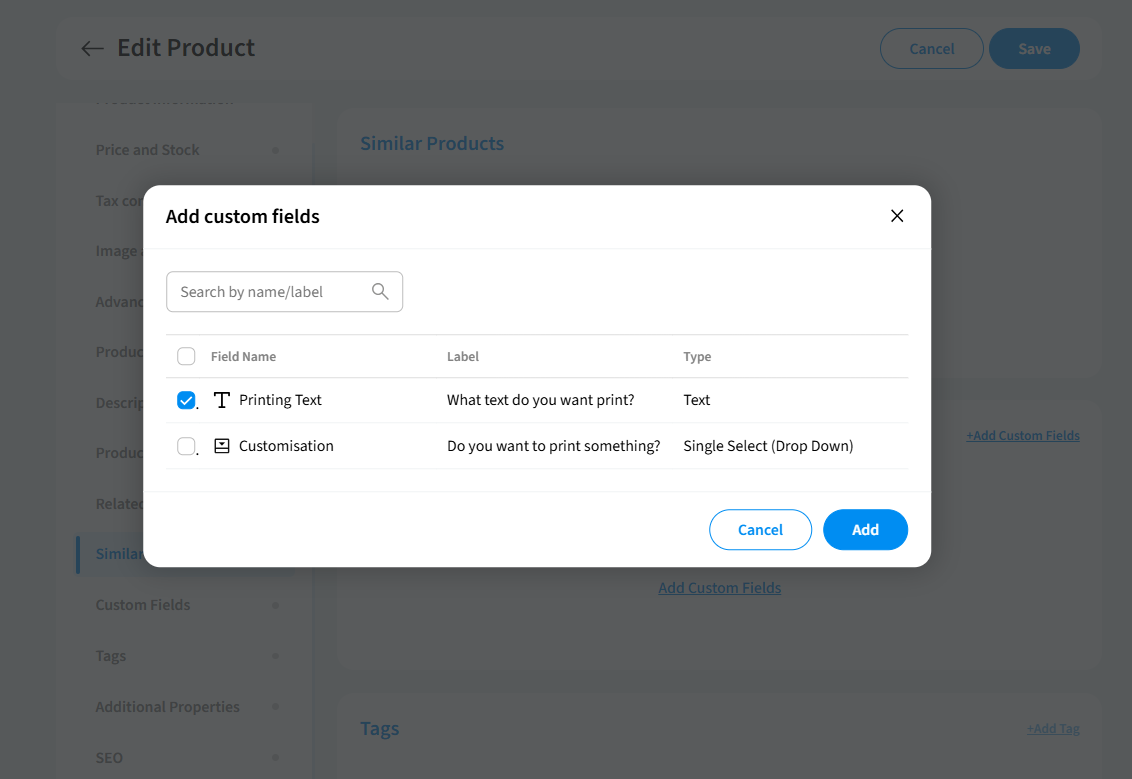
Click Add Custom Fields to open the selection modal, which shows all custom fields you have configured for your store. Each field displays its Field Name, Label (the question shown to the customer), and Type (for example, Text or Single Select Drop Down). Select the fields you want to attach to this product and click Add.
Tip: Custom fields are created and managed with the help of Product Custom Field plugin. If you need a new custom field that doesn't yet exist, you'll need to create it in your store settings first.
Tags
Tags are keywords you can attach to a product to improve searchability and organisation within your store. Click + Add Tag to add one or more tags to this product.
Additional Properties
Additional Properties let you assign this product to attribute groups — such as Brand or Manufacturer — which customers can use to filter products on your storefront.
The section displays a table of available groups (for example, Brand-default, Manufacturer-default, Brand, Manufacturer) along with an Item Count showing how many items are currently assigned to each group. Click the three-dot menu next to any group to manage its items for this product.
SEO
The SEO section lets you control how this product page is indexed, tracked, and presented in search engine results. Click Add SEO Content to open the SEO settings modal, which contains three tabs.
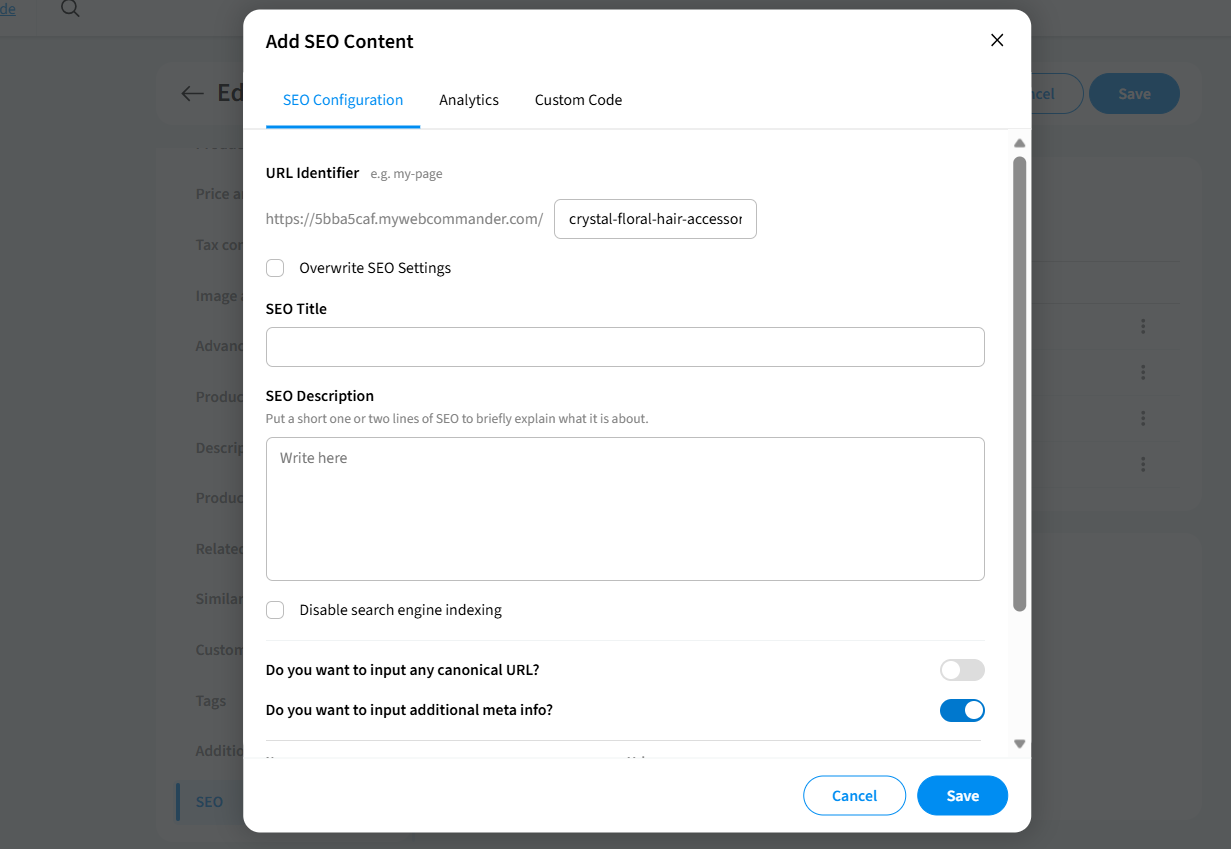
SEO Configuration
- URL Identifier - The unique part of the web address for this product page. For example, if your store URL is
https://yourstore.mywebcommander.com/and you set the identifier toasos-ridley-high-waist-1, your product page will be accessible athttps://yourstore.mywebcommander.com/asos-ridley-high-waist-1. - Overwrite SEO Settings - When enabled, the settings you enter here override any default SEO settings applied at the store level.
- SEO Title - The page title shown in search engine results for this product.
- SEO Description - A short description of the product shown in search engine result snippets. Aim for one to two clear, informative sentences.
- Disable search engine indexing - When checked, this page is excluded from search engine indexes, meaning it will not appear in search results.
- Do you want to input any canonical URL? - When enabled, you can specify a canonical URL to tell search engines which version of this page is the primary one, helping to avoid duplicate content issues.
- Do you want to input additional meta info? - When enabled, you can add custom meta name and value pairs to this product page for advanced SEO control.
Analytics
- Use default product listing configurations - When enabled, this product uses the store's default analytics configuration for product listing tracking.
- Do you want to enable third-party analytics? - When enabled, third-party analytics tracking (such as Google Analytics events) is activated for this product page.
Custom Code
- Use default product listing configurations - When enabled, this product uses the store's default custom code configuration.
- Do you want to add custom code in header? - When enabled, you can inject custom code (such as scripts or meta tags) into the
<head>section of this product page. - Do you want to add custom code in footer? - When enabled, you can inject custom code into the footer of this product page.
